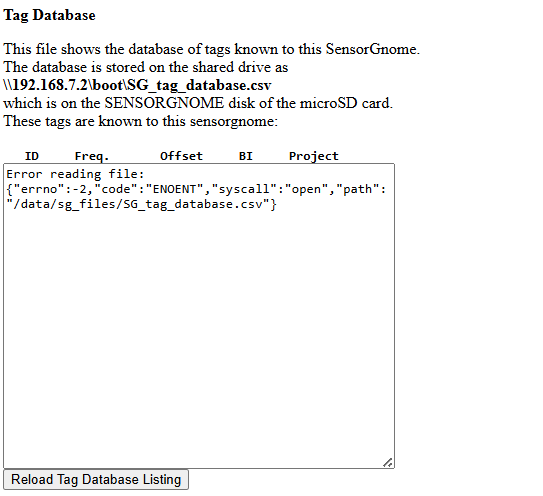
I have encountered the exact same issue multiple times. I suspect it may be caused by the database file being corrupted during transfer to the sensorstation - perhaps because of the existing of the prior database file you are trying to overwrite being in use by the station. Although I have not conclusively verified that, I do seem to get more reliable results if there is no pre-existing /data/sg_files/sg_tag_database.sqlite file on the RPi..
What I have done is written up a procedure that seems to work reliably for me. Its not guaranteed but it may be worth a shot. See below.
Loading your Lotek tag database to a CTT SensorStation
----- STEP 1 -----
Get your tag database from Motus.org > Manage Tags
- Usually lands as a timestamped .sqlite file in “Downloads” folder
- Rename the file to SG_tag_database.sqlite
- I assume below it will be found in “Downloads”
----- STEP 2 -----
Obtain your SensorStation’s Network IP number from the LCD display at
“Network” > “IP Number”
(it can be either wlan0 or eth0 but the station and your laptop must be on the same network)
In this example my stations IP number is 10.0.0.130
----- STEP 3 -----
Move (or delete) the current current tag database on the SensorStation using ssh and linux commands.
** This step is critical **
These instructions will perform the following actions:
- login via ssh from your computer
- locate the current tag database
- rename it and then exit the ssh session
open a new terminal window on your laptop/computer:
(cmd.exe or Putty for windows or iTerm for Macs)
ssh ctt@10.0.0.130 <<< substitute your IP number here
(enter the ctt pswd - typically ctt-station, ctt-sensor or raspberry )
cd /data/sg_files
sudo mv SG_tag_database.sqlite ./SG_tag_database.sqlite.ORIGINAL
(reenter ctt pswd: ctt-station if asked)
Leave this window open we will use it again in a moment
------ STEP 4 ------
Perform the actual copy the tag database file from your laptop/computer
to the SensorStation:
From a second terminal cmd window on your laptop/computer:
(We want to execute commands on the local laptop/computer)
Navigate to wherever the new SG_tag_database.sqlite file is located
(using Mac/linux or Windows file separators)
cd ~/Downloads …or for windows… cd ~\Downloads
The following command copies the file to the SensorStation (Use eithr YOUR SensorStation IP number or hostname sensorstation.local)
scp ./SG_tag_database.sqlite ctt@sensorstation.local:/data/sg_files
OR (if hostname “sensorstation.local” is not recognized on your network ):
scp ./SG_tag_database.sqlite ctt@10.0.0.130:/data/sg_files
------ STEP 5 ------
Verify the transferred file was correctly copied using the terminal window that is
Logged in to the Sensorstation
(If you should still be in /data/sg_files from Step 2)
Type command:
sqlite3 SG_tag_database.sqlite ‘select * from tags’
You should see something similar to below showing your tags.
ctt@sensorstation:/data/sg_files $ sqlite3 SG_tag_database.sqlite ‘select * from tags’
580|534|166.380|166.376|26.852|151.352|156.234|10.8998003005981|-0.000300000014249235|0.0|0.0|0.00230940107675312|0.0|0.0|motus download|Lotek6M
580|48|166.380|166.376|31.733|39.059|63.468|38.2963981628418|-9.99999974737875e-05|0.00200000000000067|0.00200000000000244|0.0|0.0|0.0|motus download|Lotek6M
580|63|166.380|166.376|31.733|122.055|24.412|10.8994998931885|-9.99999974737875e-05|0.00200000000000067|0.00199999999999534|0.0|2.17558400799017e-15|0.0|motus download|Lotek6M
ctt@sensorstation:/data/sg_files
Restart the service:
sudo systemctl restart sensorgnome
Refresh and check the sensor gnome webpage… does it see the changes?
reboot the SensorStation using the power ON/OFF switch
Verify with test tags through the Sensorgnome interface of the CTT Web interface.
FINALLY
I have encountered stubborn instances where the ‘select * from tags’ sqlite command succeeded but the final test of viewing through the sensor gnome web interface generated an error.
I retried by repeating starting in Step 3 but actually deleting the SG_tag_database.sqlite file (since you had already preserved the original earlier.)
After confirming the SG_tag_database.sqlite no longer exists. Proceed with the scp in Steps 4 and 5
ALTERNATE SUGGESTION THAT COMES TO MIND…
Simply removing the SG_tag_database.sqlite (directory:/data/sg_files) and then reboot and retry the SG web interface “Upload tag database” button may work as well ( Ive not verified). However my test procedure actually tests the database file is not corrupt to start with so seems more robust.