Typically (and preferably) a SensorStation will be connected to the internet in some way. But in remote areas where this isn’t possible, a manual download is needed. This can take some time depending on the volume of data stored, and there is often a bit of doubt whether everything that should have been copied over was in fact copied over.
Connecting and downloading with a GUI can provide a helpful way of sorting and visualizing the files on the SensorStation so that only – and all of – the required files are transferred.
Two free options are FileZilla and WinSCP. The process is pretty similar, but as FileZilla is cross-platform and WinSCP is Windows only, the steps below are for FileZilla.
-
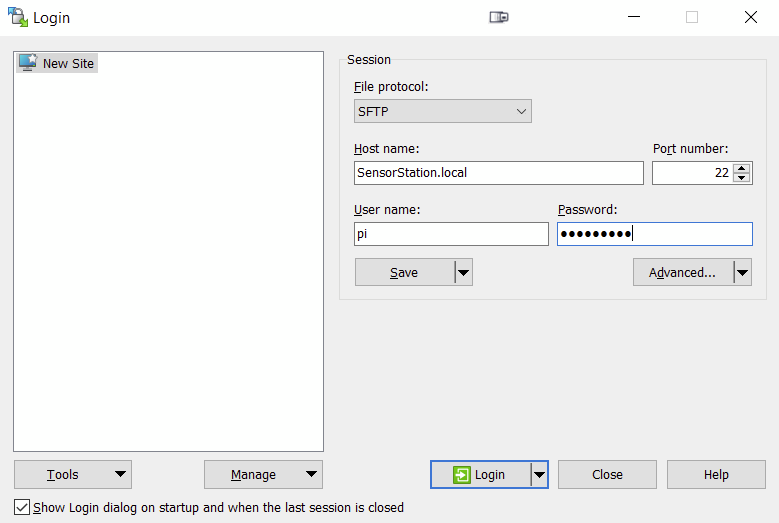
Open FileZilla and click the Site Manager button (or select it from the menu File > Site Manager).
-
Select
SFTPfor File protocol, then enter theHost name,User name, andPassword. Port number should auto-populate with22.These are the same credentials used when connecting with SSH, and are described in the CTT SensorStation manual.
You can also enter these credentials into the QuickConnect bar, in which case the Host in this example would be
sftp://sensorstation.local. -
Click Login and once connected, the folder structure should be visible on the right hand side of FileZilla.
-
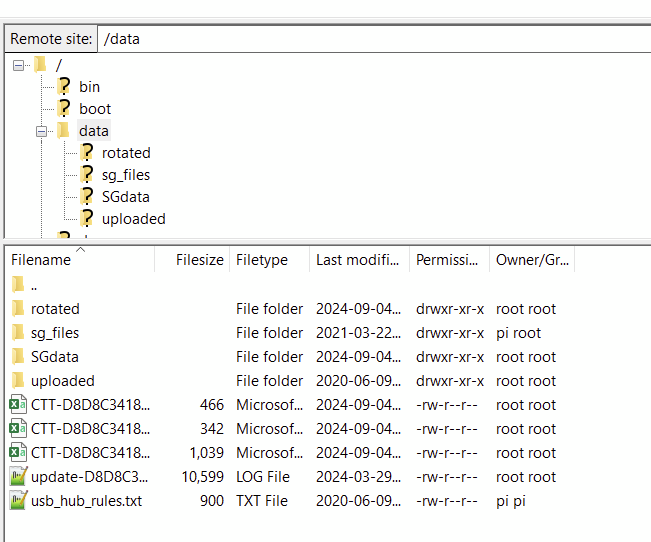
Navigate to
/datato access the detection data. Entering any of these folders will allow you to sort and select the files needed to transfer to your computer.